Join Your Jobsite

If you are trying to get into your jobsite or complete orientation, you are in the right place.
Follow the steps below to join your jobsite and get started.

How to Join Your Jobsite

To join your jobsite in MindForge:

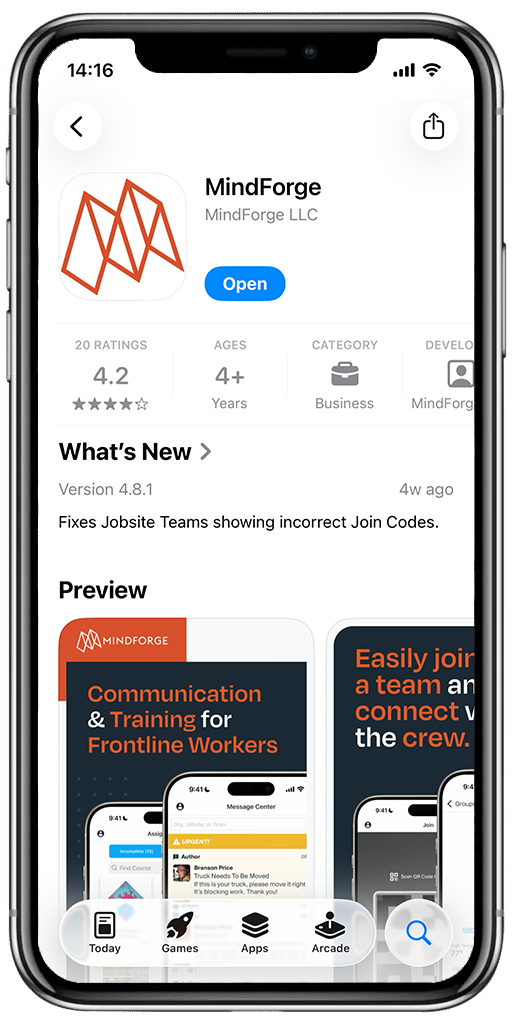
  • Download the MindForge app from the App Store or
    Google Play
  • Open the app and create your profile
  • Scan the QR code provided by your supervisor or
    site admin
  • Once you join the jobsite, any required items will
    appear automatically

Important:

  • Every jobsite has its own QR code
  • Your supervisor or site admin is the only one who
    can provide that code
  • If you do not have the QR code, ask your supervisor
Click your store to download

Need Access to the Jobsite Orientation?

Orientations are assigned after you join the jobsite.

To access orientation:
Add Unlimited Users
Send Unlimited Messages
  • Scan your jobsite QR code inside the MindForge app
  • Once you are added to the jobsite, your required orientation will appear
  • Go to the Assignments tab on the app and tap the assigned orientation and complete it
If you joined the jobsite and do not see the orientation:
Add Unlimited Users
Send Unlimited Messages
  • Confirm with your supervisor that you are assigned to the correct team
  • Make sure you scanned the correct jobsite QR code
  • Ask the jobsite admin to verify your access

Still Need Help?

If you are unsure who your jobsite admin is, ask your foreman or supervisor first.
They are your best point of contact for QR codes and access.

Frequently Asked Questions

How do I get access to the orientation video?
How do I get a QR code to join my jobsite?
Is the orientation available in Spanish?
I do not have a smartphone. How do I complete my orientation?
Have more questions?
View all FAQs